


The Akai MPC 3.9 OS update is officially live, turning our standalone hardware and keygroups into an outright multi-waveform synthesizer. But there is a massive bottleneck: thousands of producers are hitting a wall trying to actually find, download, and load the new MPC Core Oscillators content.
If your inMusic Software Center app is hanging, or you booted up standalone mode only to find your keygroup tracks are completely silent when switching from “Sample” to “Oscillator,” you are not alone. The licensing servers are heavily congested.
Here is the exact step-by-step manual bypass to push the synthesis engine onto your hardware right now.
Step 1: Download via the inMusic Software Center
open the InMusic Software center and navigate to the “My Expansions Tab”

Click “Install” and follow prompts
For Standalone installation click the “transfer” button and select your hard drive

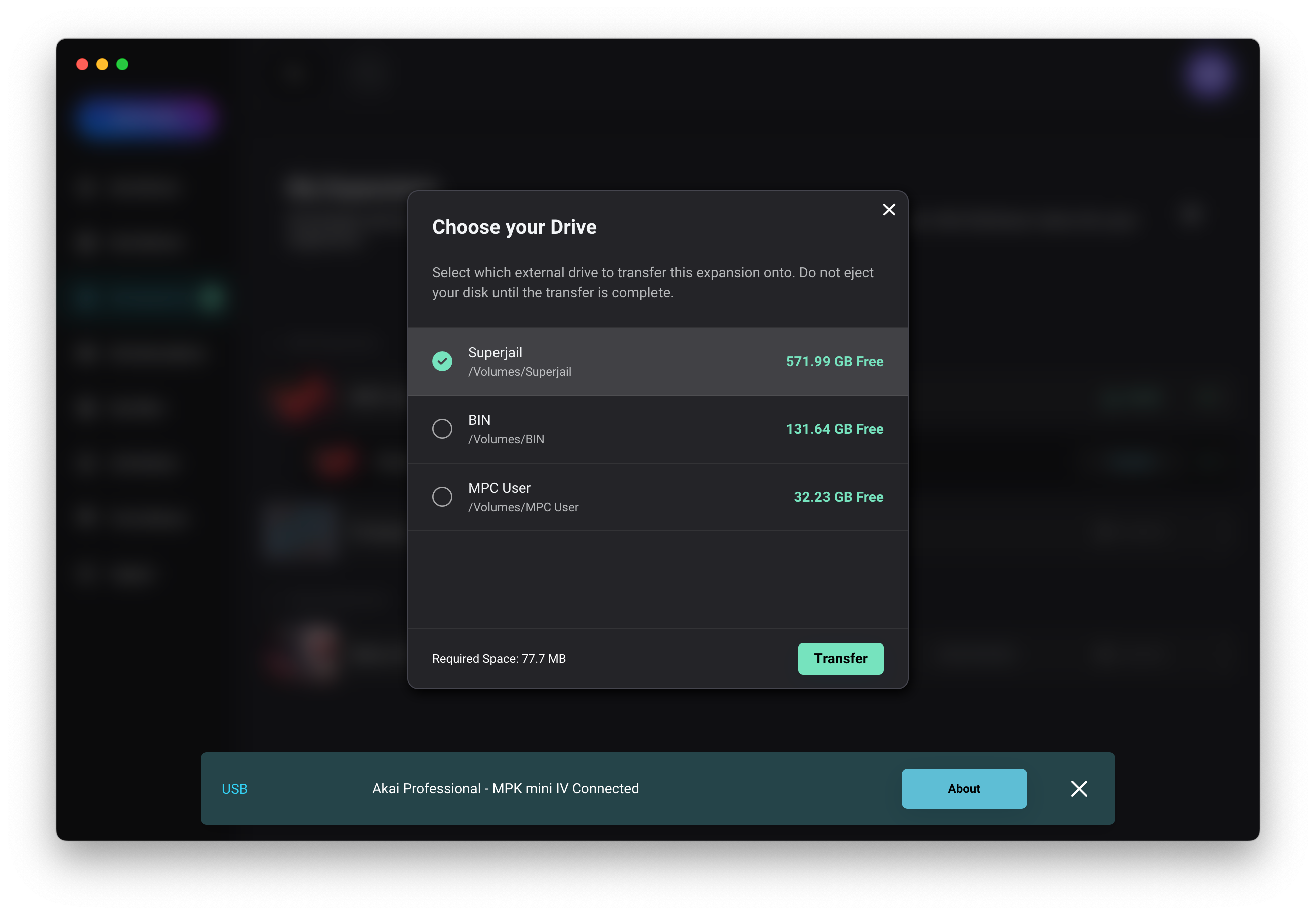
Step 2: Force-Refresh the inMusic Software Center
Do not trust the automatic app launch state. If you registered your hardware but the 3.9 content isn’t visible, your local license cache is stale.
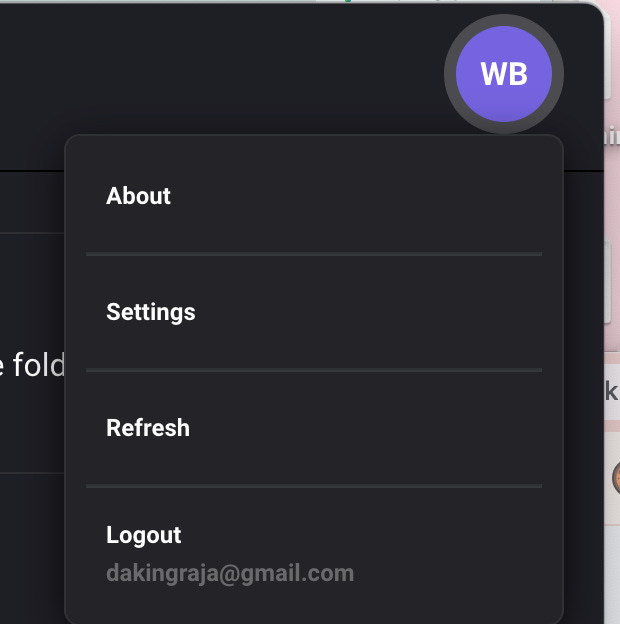
Close your DAW and open the inMusic Software Center on your desktop.
Click your Profile Icon in the top-right corner.
Click Refresh. This manually forces an API call to update your expansion entitlements.
Navigate to your specific hardware tab (e.g., MPC Key 37 Gen 2 or MPC One G2) and ensure you update to the MPC 3 Desktop Software (Public Beta).
Step 2: The Desktop Activation Extraction
If your standalone unit refuses to download the update over Wi-Fi, you must extract the asset via the desktop software.
Launch the MPC 3 Desktop Beta application.
Open the Preferences menu and navigate to the Activations pane.
Locate MPC Oscillator Content / Core Oscillators and click download.
Once downloaded locally, navigate to your computer’s default Akai expansion path:
Mac: ~/Library/Application Support/Akai/MPC/Expansions/
Windows: C:\ProgramData\Akai\MPC\Expansions\
Locate the folder titled com.akaipro.mpc.expansion.coreoscillators.
Step 3: Manual Standalone Mounting
Connect your external MPC storage device (SD Card or SSD) to your computer.
Create a folder in the root directory named Expansions if you don’t already have one.
Copy the entire com.akaipro.mpc.expansion.coreoscillators folder directly into that Expansions directory.
Eject the card, insert it into your standalone MPC, and boot into OS 3.9.
Go to Track Edit -> Samples Tab, toggle the radio button from Sample to Oscillator, and your basic and advanced synthesis waveforms will now fire perfectly.
Grab the PAL Alpha Pack: To make sure your system is processing the new engine correctly, I built a quick, lightweight 5-preset Keygroup bank using the native Saw-Square morphing engine. Subscribe below to download the .xpm file instantly to test your standalone performance.